

Blackjack Trainer app icon

Blackjack Trainer


Blackjack Trainer — Rules

Rules

Blackjack may be played with one to eight 52-card decks.

Aces may be counted as 1 or 11 points, 2 to 9 according to pip value, and tens and face cards count as ten points.

The value of a hand is the sum of the point values of the individual cards. Except, a “blackjack” is the highest hand, consisting of an ace and any 10-point card, and it outranks all other 21-point hands.

The dealer gives two cards to each player and two cards to himself. One of the dealer cards is dealt face up. The facedown card is called the “hole card.”

If the dealer has a ten or an ace showing, then he will peek at his facedown card to see if he has a blackjack. If he does, then he will turn it over immediately.

If the dealer does have a blackjack, then every hand loses, unless the player also has a blackjack, which will result in a push.

Play begins with the player’s action. The following choices are available to the player:

Stand: Player stands pat with his cards.

Hit: Player draws another card (and more if he wishes). If this card causes the player’s total points to exceed 21 (known as “breaking” or “busting”) then he loses.

Double: On the first two cards only, the player takes one - and only one - more card, then stands. The hand counts double.

Split: If the player has a pair, or any two 10-point cards, then he may separate them into two hands, each dealt a second card and scored on its own. Then, the player may hit, stand, or double normally. However, when splitting aces, each ace gets only one card. Sometimes doubling after splitting is not allowed. If the player gets a ten and ace after splitting, then it counts as 21 points, not a blackjack. Usually the player may keep re-splitting up to a total of four hands. Sometimes re-splitting aces is not allowed.

Surrender: The player gives up the hand without playing it out, at half its cost. This option is only available on the initial two cards, and depending on the rules in force, sometimes it is not allowed at all.

After the player has had his turn, the dealer will turn over his hole card. If the dealer has 16 or less, then he will draw another card. A special situation is when the dealer has an ace and any number of cards totaling six points (known as a “soft 17”). At some tables, the dealer will also hit a soft 17.

If the dealer goes over 21 points, then any player who didn’t already bust will win.

If the dealer does not bust, then the higher point total between the player and dealer will win.

A winning hand scores one point; a winning blackjack scores one and a half.
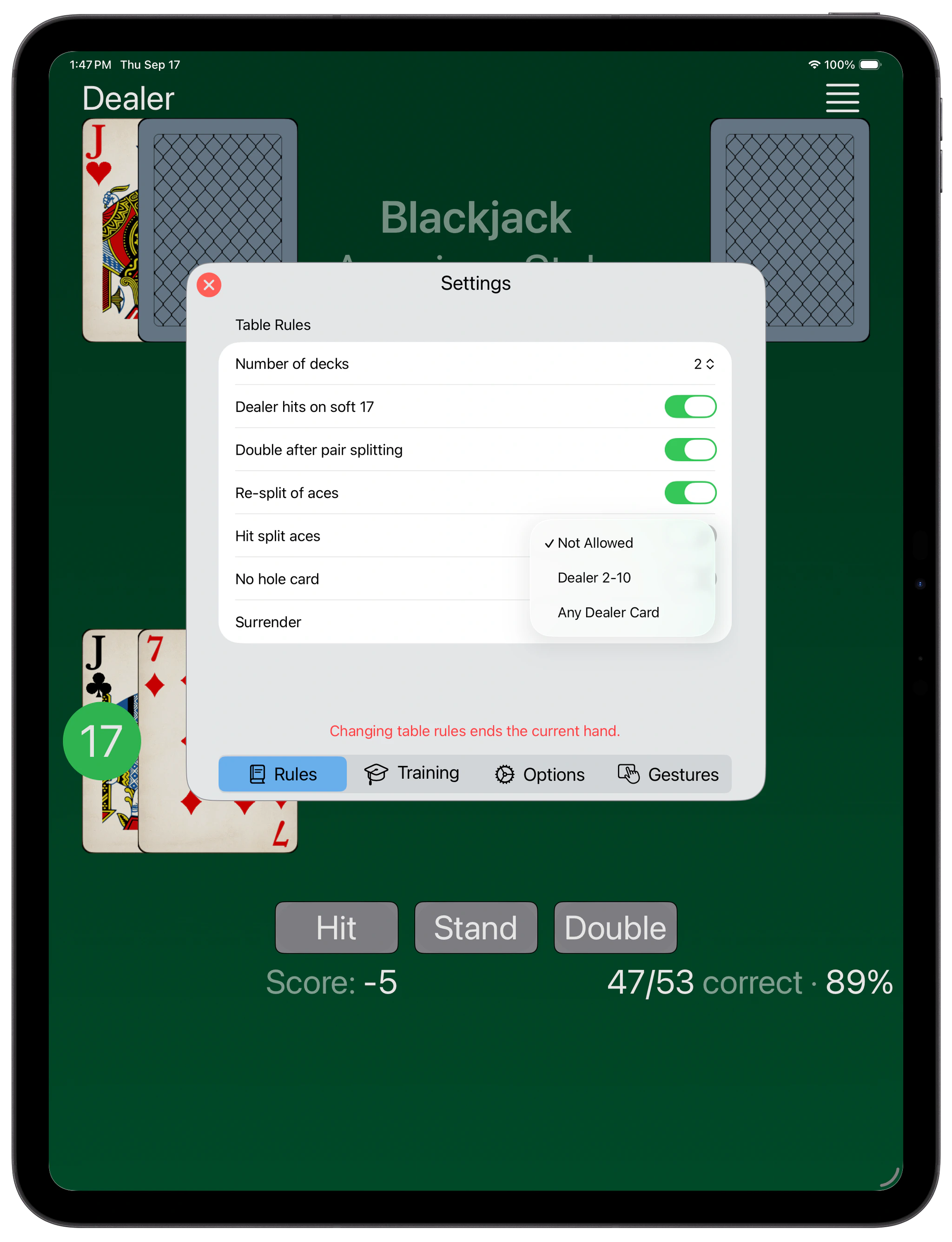
Blackjack Trainer — Settings

Settings

You can control the following options through the Settings menu:

Rules Tab

Number of decks - choose any number from 1 to 8.

NOTE: the single deck is shuffled after each hand. In multi-deck, the cut card is inserted about 25% from the end of the shoe. The shoe is reshuffled after the round in which the cut card was reached ends.

Dealer hits on soft 17 - if selected, the dealer hits ace and any number of cards totaling six points (known as a “soft 17”). Otherwise dealer must stand on all 17.

Double after pair splitting - if selected, the player may double after splitting a pair.

Re-split of aces - if selected, the player may keep splitting aces upt o a total of four hands. Otherwise, a pair of aces may only be split once.

Hit split aces - if selected, the player may hit each hand after splitting a pair of aces. Oterwise, you only get one additional card for each ace.

No hole card - if selected, the dealer only gets one card, so there is no peeking for a potential Blackjack. Otherwise, the dealer gets a second card, face down.

Surrender - when allowed, the player may give up a hand for half its cost rather than play it out. The setting also chooses which dealer up cards permit it: any card, or 2 through 10 only.

Blackjack Trainer — Training

Training

Training Tab

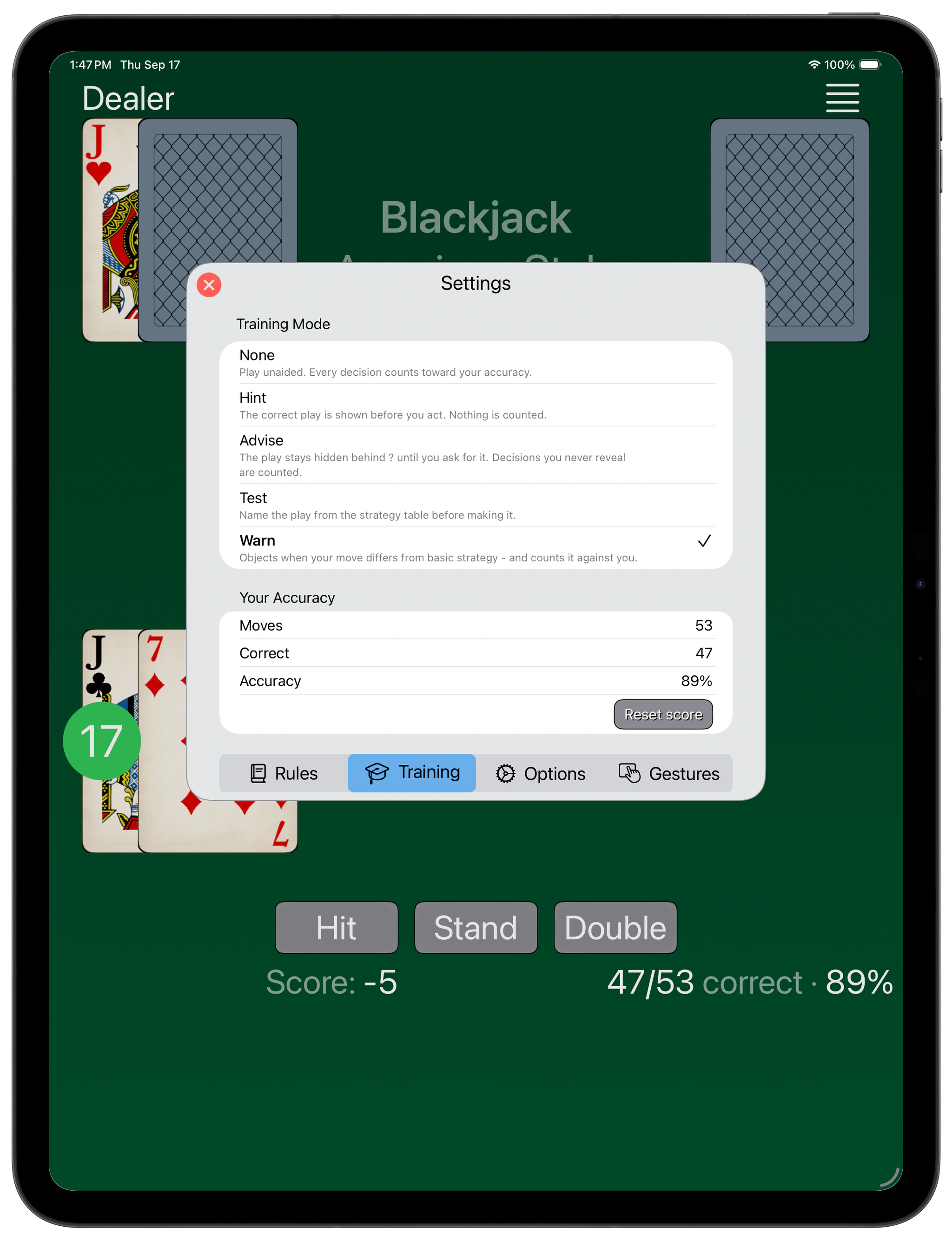
Training Mode - select one of the Training Modes:

None - play unaided. Every decision counts toward your accuracy.

Hint - the correct play is shown before you act. Nothing is counted.

Advise - the play stays hidden behind ? button until you ask for it. Decisions you never reveal are counted.

Test - tap the play from the strategy table before making it.

Warn - objects when your move differs from basic strategy - and counts it against you.

Accuracy - your accuracy stats.

Reset score - reset your score and dumber of played / correct moves.

Options Tab

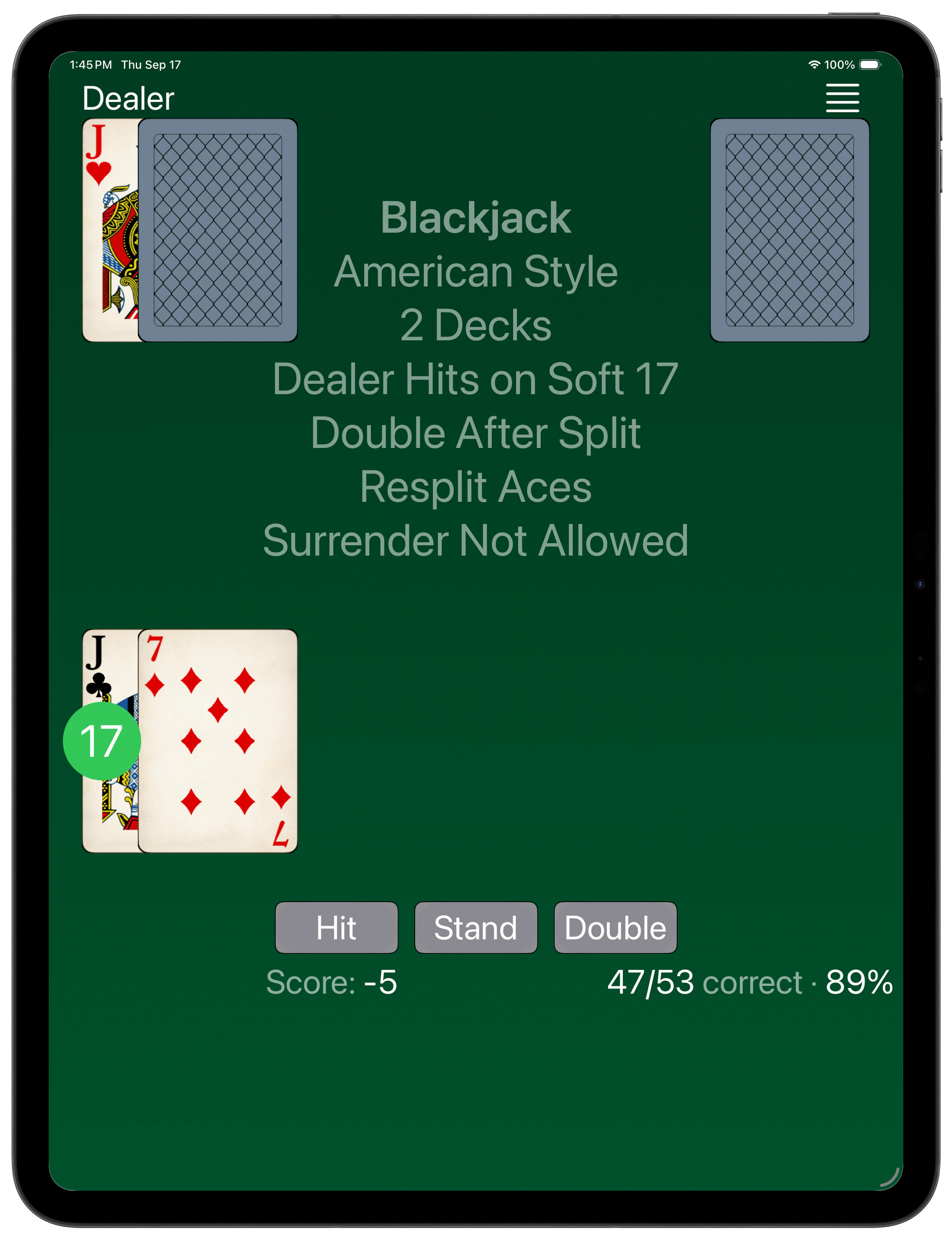
Show rules on the table - if selected, the list of rules is displayed on the table.

Card Spacing - overlap width, as a fraction of card width.

Player’s Panel Elevation - shift a panel away from the bottom edge.

Animate - toggle to show animation.

Gestures Tab

You can configure any gesture to perform any of the game actions. Select to ignore a gesture. The defaults are:

Swipe left - Surrender

Swipe right - Stand

Swipe up - Double

Swipe down - Split

Tap - Hit

Double Tap -

Long Press - Strategy

Blackjack Trainer — Warn Mode

Warn Mode

This is the least intrusive training mode.

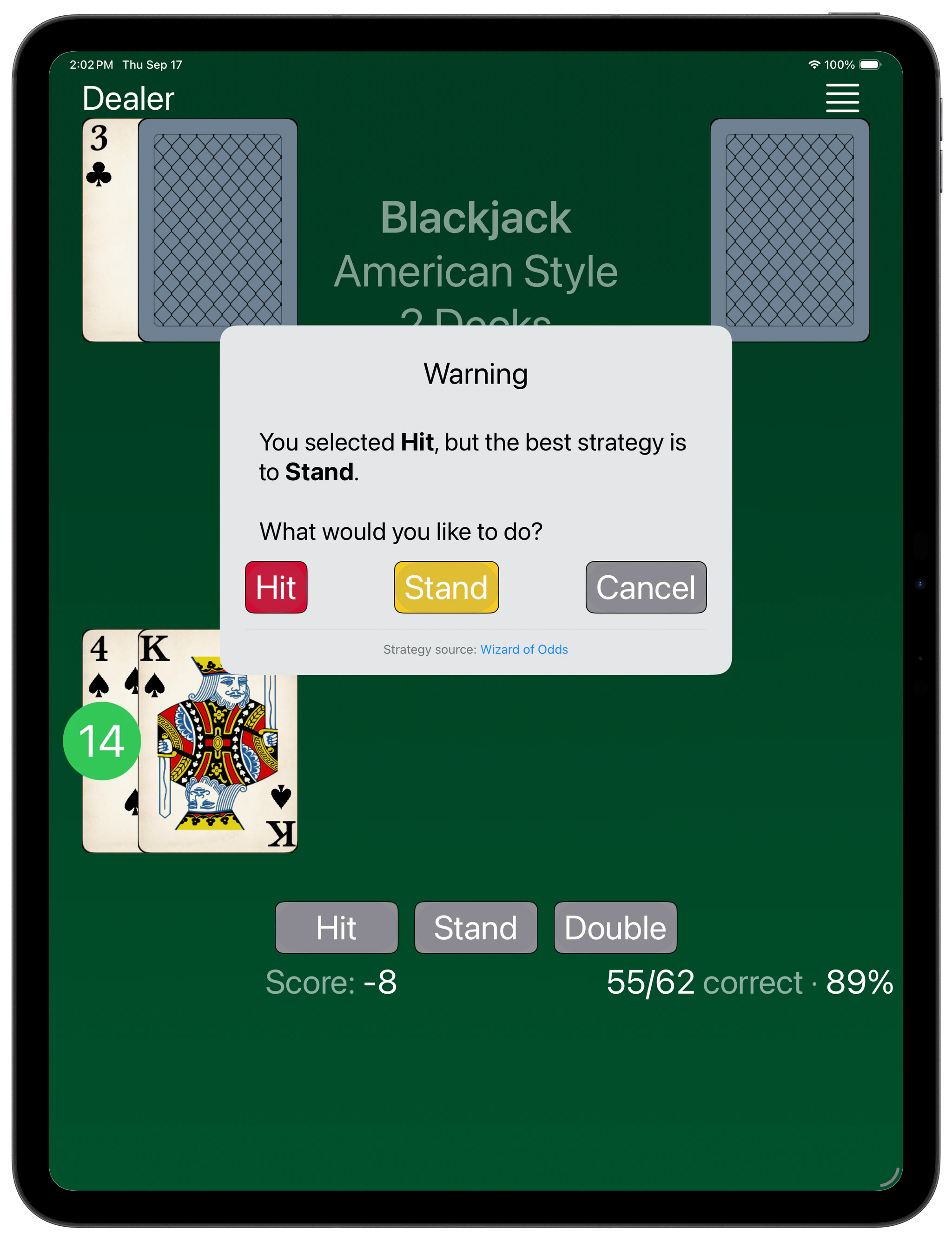
It only warns you when you are about to make a play that is against the basic strategy, without interrupting gameplay if your move is correct.

The pop-up warning will clearly state your play and the best move according to the basic strategy. You can select either, or cancel.

Blackjack Trainer — Strategy

Strategy

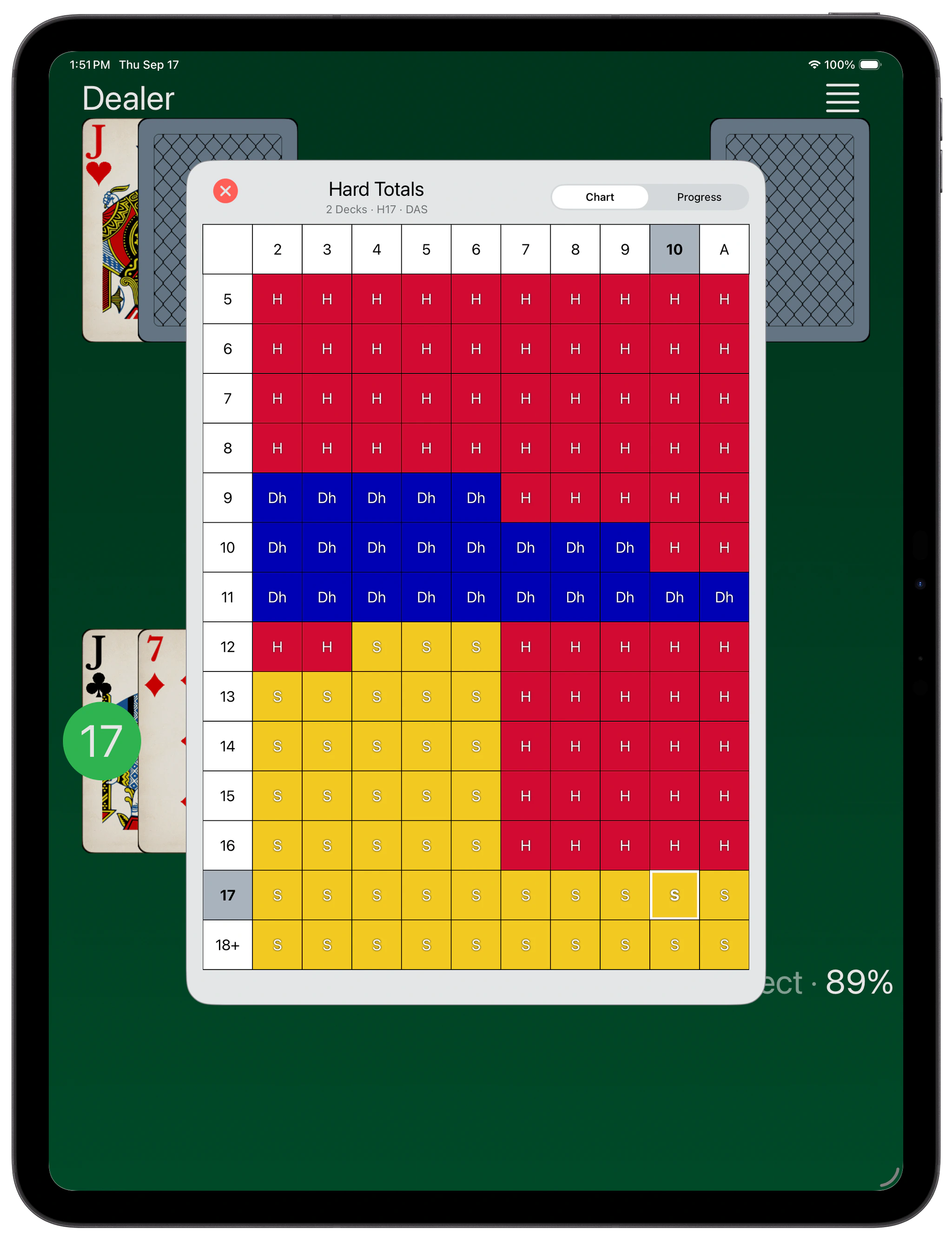
At any time you can display a strategy chart to see the optimal play according to the basic strategy.

The chart will be selected according to your configured Table Rules.

Tap the chart to switch between Hard and Soft totals or double tap to see the Pair chart. You can also swipe left or right to cycle through different sections of the chart.

Blackjack Trainer — Progress Map

Progress Map

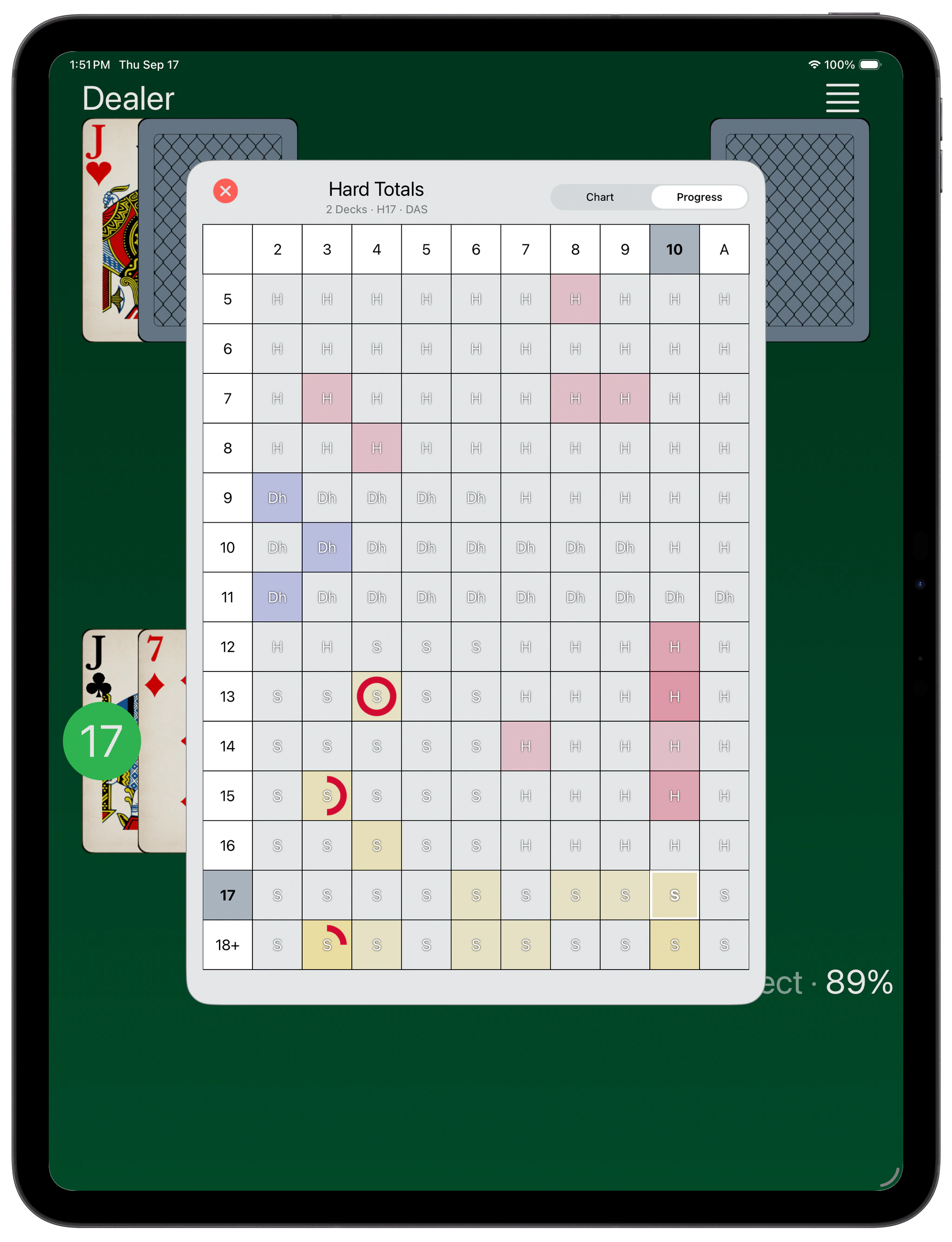
Every decision you make is compared with the basic strategy for the hand in front of you, and remembered. The Progress view on the Strategy chart shows you where your mistakes are; the Stats screen counts them.

Progress Open the Strategy chart and switch from Chart to Progress. The chart keeps its shape, and every cell now tells you three things at once.

Color - the play the tables recommend, in the same colors as the action buttons.

Depth of color - how many hands you have played from that cell. A pale cell is one you have barely met. A blank one you have never met at all.

The dial - how often you got that cell wrong. A full circle means every time; a quarter circle means one time in four. Nothing at all means you have never missed it.


The dial is drawn in the color of the move you made instead, so it says what the mistake was and not merely that there was one. A red arc on a blue cell means you hit a hand you could have doubled. Where you have made more than one kind of mistake, the dial is divided between them.

A cell you have mastered carries no dial - so the more you learn, the more the Progress view turns back into the plain strategy chart.

Blackjack Trainer — Statistics

Statistics

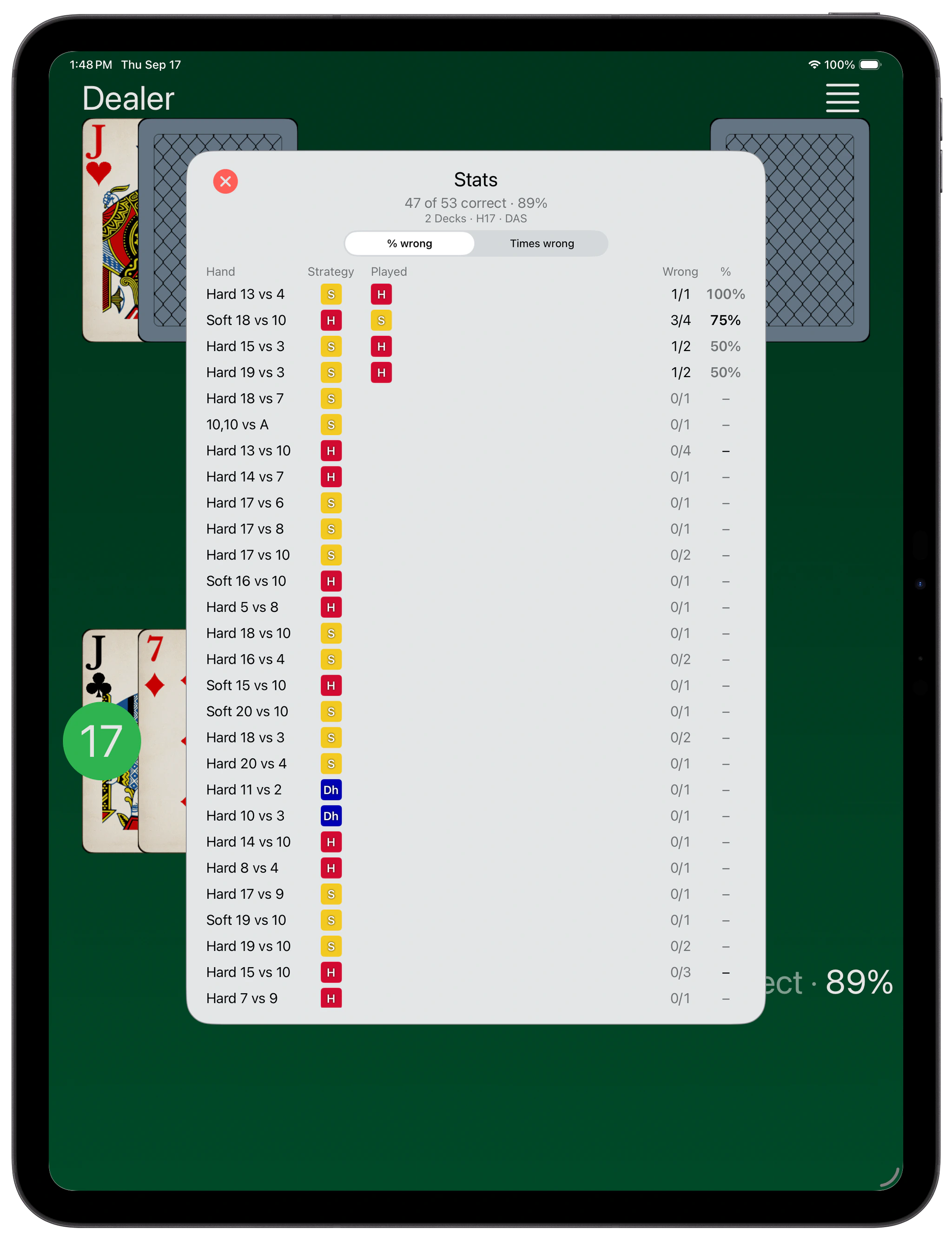
Stats Stats in the menu lists every hand you have played, one row each:

Hand - your total and the dealer’s up card, named as they are on the chart.

Strategy - the move the tables recommend.

Played - what you played instead, most common first.

Wrong - how many times you got it wrong, out of how many you have played.

% - the same, as a percentage.

Sort by Times wrong to find where you are losing the most decisions, or by % wrong to find what you get wrong most of the time. Rows built on only one or two hands are dimmed - that is not yet enough to judge yourself on.


NOTE: both Stats and Progress show only the decisions made under the rules you have selected now. The correct play at a few spots - 11 against an Ace, the pairs that depend on doubling after a split, the surrender hands - changes with the rules, so a cell can be blank here even though you have played it under a different set. Your overall accuracy on the Training tab counts every decision, whatever the rules, so it will not always match the rows below.


NOTE: Reset score on the Training tab in Settings clears all of it.

Blackjack Trainer — Presets

Presets

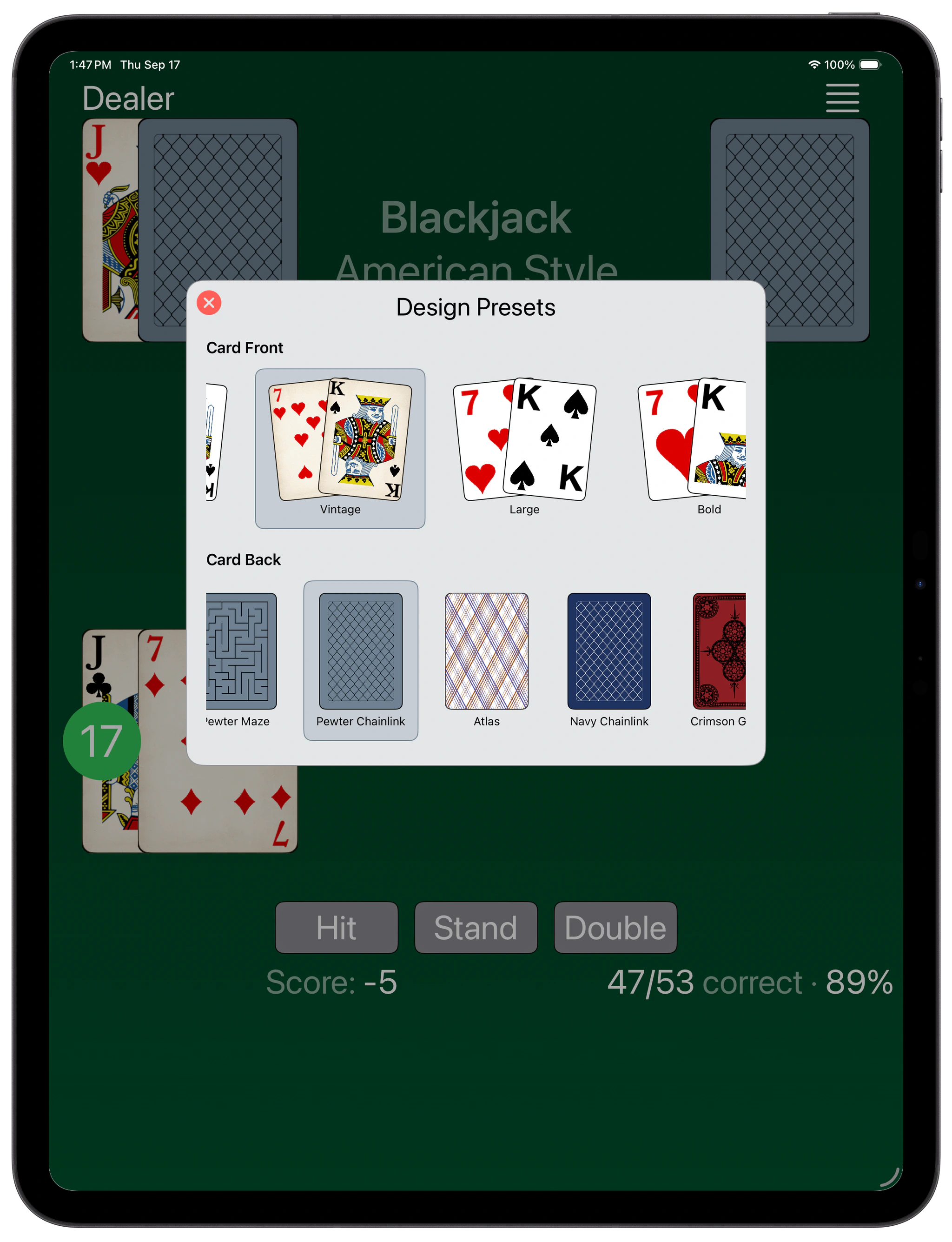
A few Design Presets are available to quickly change the look and feel of the game.

You can access them from the menu Design Presets.

Select the design you like for the front and back of the cards.

Classic and Vintage are great for iPad. Large and Bold are better suited for smaller screen of iPhone.