

Card Designer
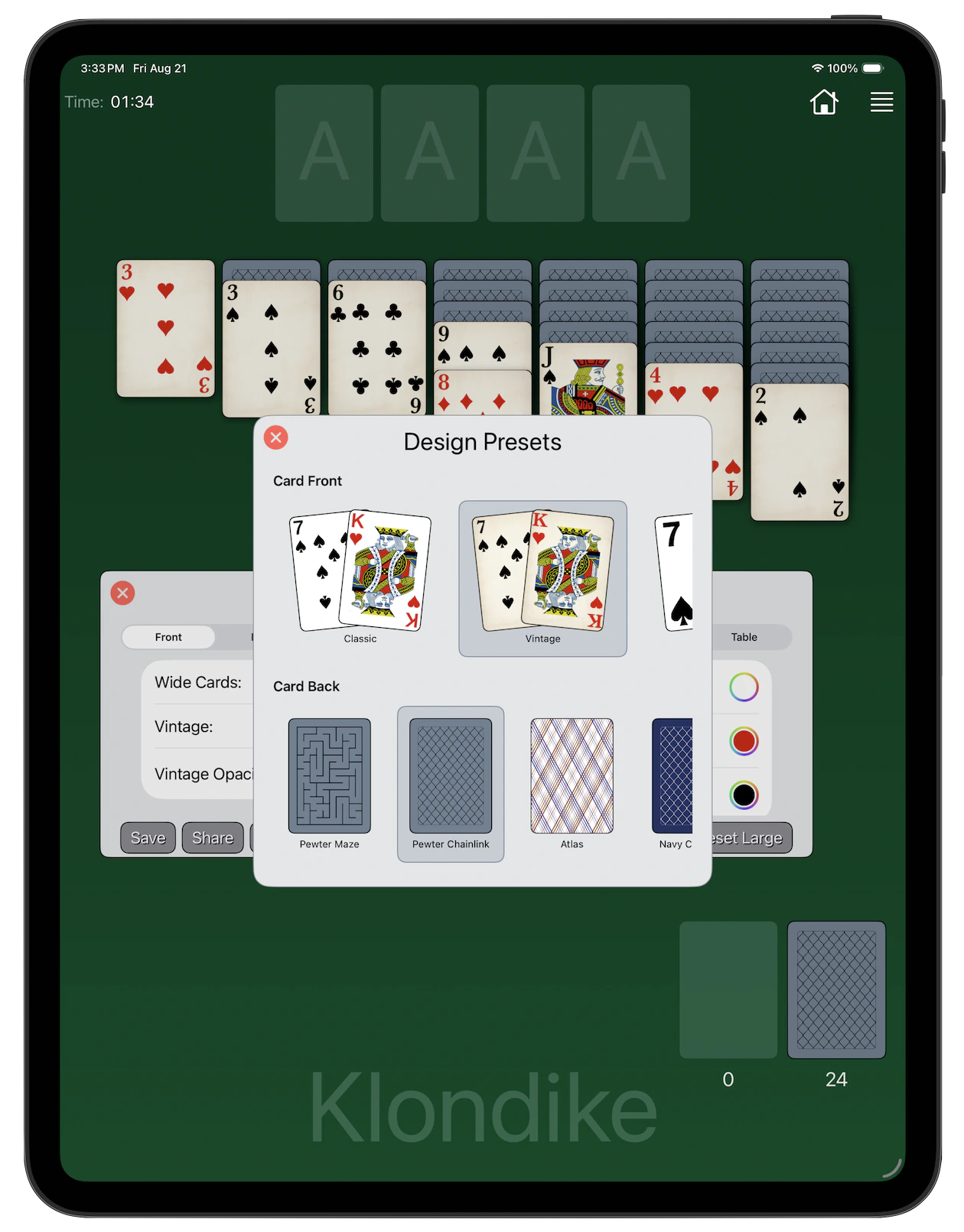
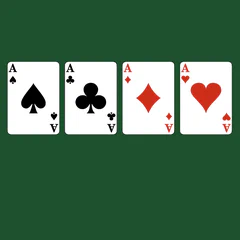
This is an app within the app. A powerful card designer that allows you to chose the way YOUR cards look on your device.
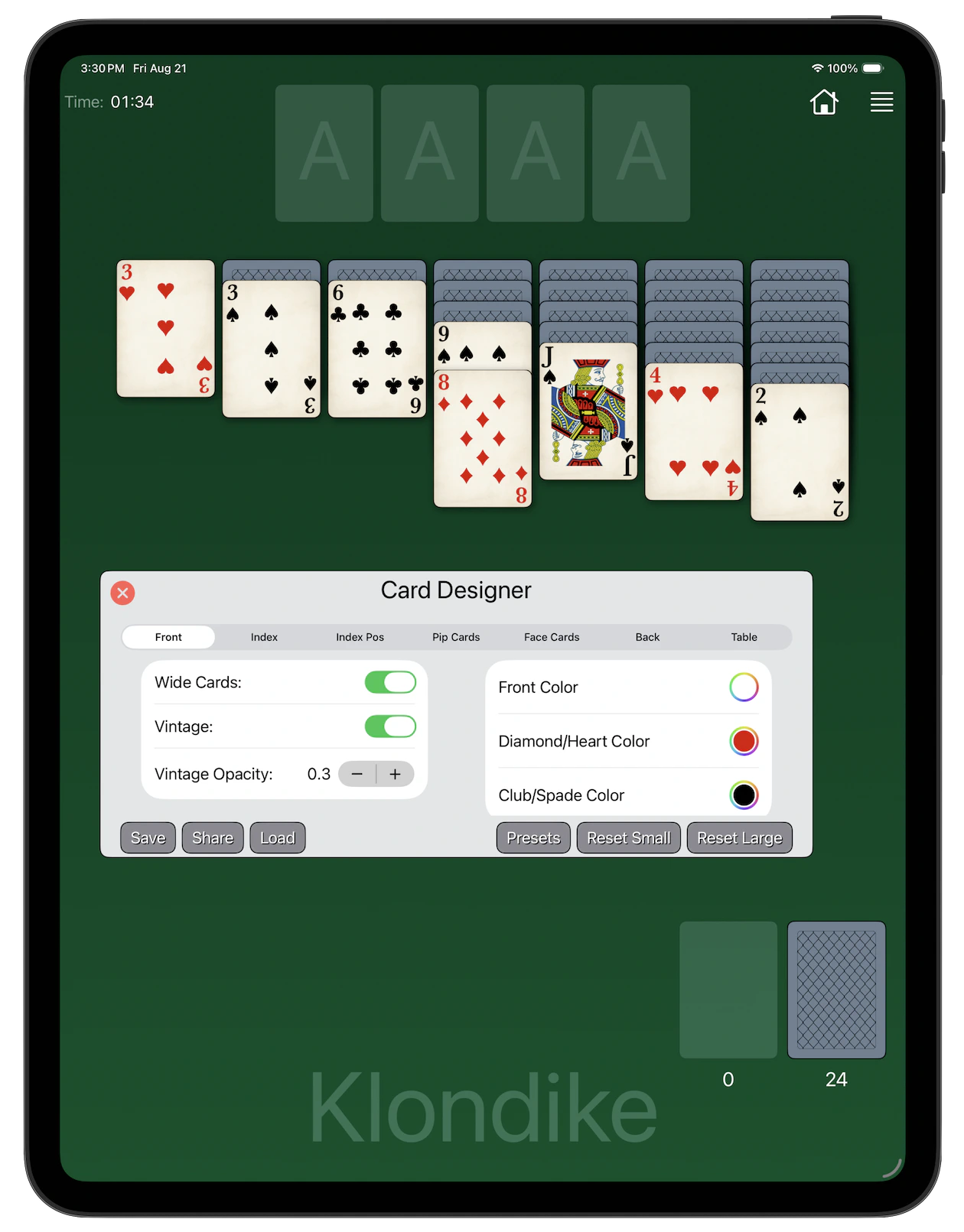
Seven tabs across the top select the feature to be edited. All dimentions are defined as a fraction of the current card height.
- Wide Cards: if toggled, use Poker-sized cards (2.5" x 3.5"), otherwise Bridge-sized (2.25" x 3.5").
- Vintage: toggle to apply a vintage-looking texture to the cards.
- Vintage Opacity: select the strength of this effect.
- Front color: tap the circle to bring up Apple’s Color Picker.
- Diamond/Heart color: select a color for the Diamond and Heart suits.
- Club/Spade color: select a color for the Club and Spade suits.
- Font: select a font to draw card’s rank.
- Split Index: toggle to split the index by drawing a suit symbol on the opposite side instead of under the rank.
- Bottom Index: toggle to show index at the bottom, untoggle to hide.
- Flip Bottom Index: toggle to draw bottom index upright.
- Weight: select a font weight, from Ultralight to Black. Some of the fonts may not support it.
- Font Height: select a font height for the card’s rank.
- Index Size: select a size for the card’s suit.
- Rank Top: select an offset from the top of the card to the rank.
- Rank Side: select an offset from the left edge of the card to the rank.
- Suit Top: select an offset from the top of the card to the suit.
- Suit Side: select an offset from the left edge of the card to the suit.
- Single Pip - select to show single suit symbol for number cards.
- Pip Size: select the size of the pip simbols.
- Pad Horz: select horizontal padding on each side of the pip area.
- Pad Top: select padding on top of the pip area.
- Pad Bottom: select padding at the bottom of the pip area.
- New Faces: select one of two designs for the Court cards.
- Single Pip Face: select to draw a single pip instead of the face.
- Half Face: select to draw only top half of the face.
- Box Face: select to draw a box around faces.
- Saturation: adjust color saturation of the face card images.
- Pad Horz: select horizontal padding on each side of the face.
- Pad Top: select padding on top of the face.
- Pad Bottom: select padding at the bottom of the face.
- Back Color: select a color for the card back (border).
- Fill Color: select a color for the middle part of the card back (pattern).
- Invert: toggle to draw pattern in white instead of black.
- Border Width: select the width of the border.
- Pattern: select one of the available patterns.
- Start Color: select a base color for the table.
- End Color: select a different color if you want a gradient.
- Break Point: specify a portion of the screen to have solid Start color.
- Radial Gradient: toggle to use radial gradient instead of linear.
- Table Image: select which of the loaded images to use for the table background.
- Load Custom Image: tap to load a custom image from Files.
- Select a Photo: tap to load a photo from your library.
- Save Design: save the current design on your devicce or on iCloud.
- Share Design: share the current design with your friends by any available means.
- Load Design: load previously saved design from your device or from iCloud.
- Reset Small: reset the design to default suitable for the small print cards.
- Reset Large: reset the design to default suitable for the large print cards.