

Devil Six Solitaire app icon
Download Devil Six Solitaire on the App Store

Devil Six Solitaire


Devil Six Solitaire — Rules

Rules

Devil Six Solitaire is played with two decks of 52 cards.

It features a unique set of six cards called the “Devil’s Six,” which makes winning particularly challenging.

The goal is to move all 104 cards onto the eight foundation piles (also called Victory Piles), building each suit from Ace to King.

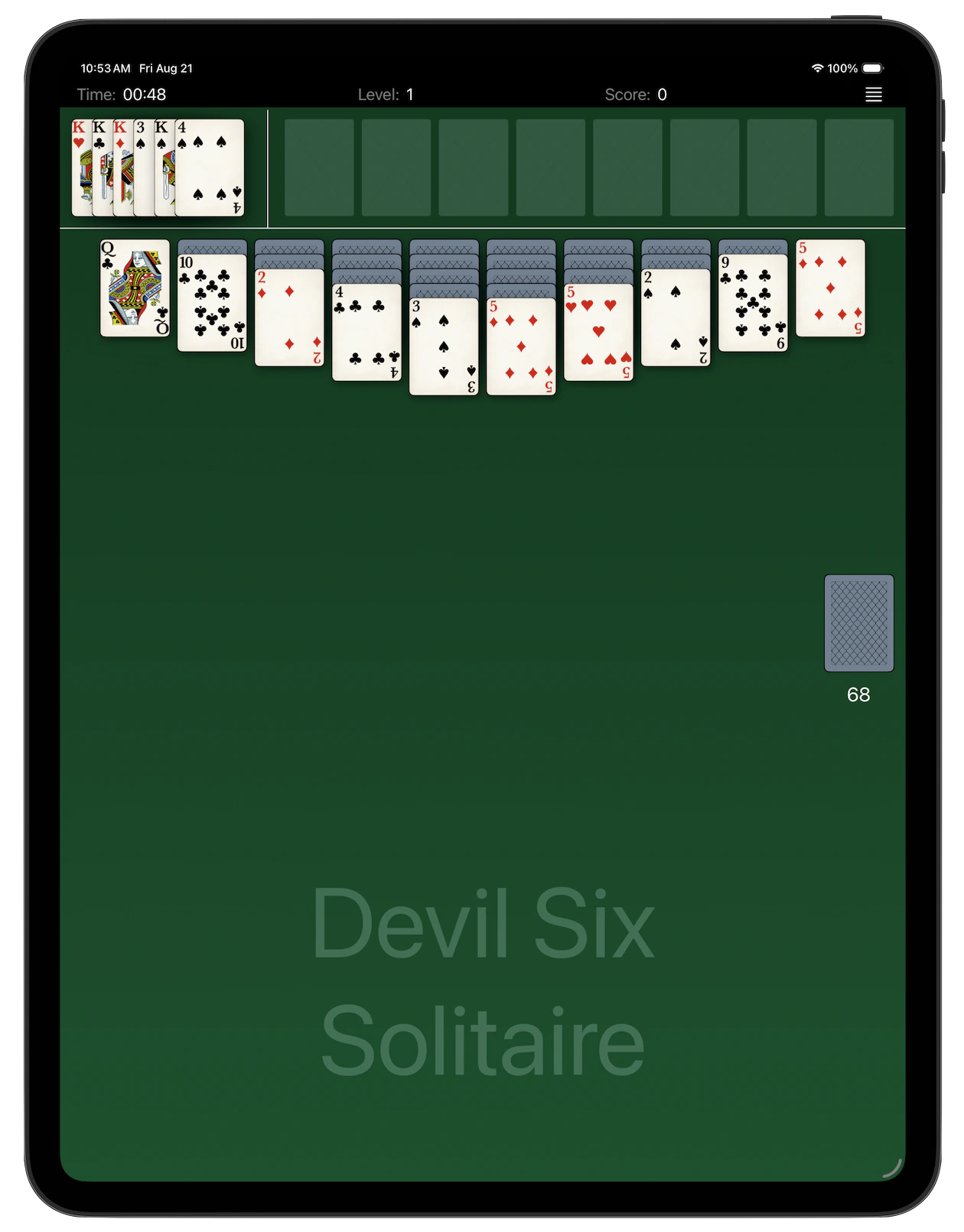
Six cards are dealt face-up in a single row at the top-left of the playing area.

Then 30 cards are dealt into 10 tableau columns in a mirrored layout with the outermost columns being shortest and the center ones longest. The top card of each column is dealt face-up, while the rest are face-down.

Gameplay

Building the tableau: You can move cards between columns by stacking them in descending order and alternating colors (e.g., a black 9 can be placed on a red 10).

Moving sequences: you can move any portion of a correctly ordered sequence of cards between columns.

Empty columns: An empty column can only be filled by a King or a correctly ordered sequence starting with a King.

Flipping cards: When you move a face-up card and reveal a face-down one below it, that card is fliped over.

The Devil’s Six: Cards from the Devil’s Six can only be moved directly to a foundation pile. They cannot be used to build sequences in the main tableau.

Aces: Any Ace that becomes available, whether from the tableau or the Devil’s Six, should be moved immediately to start a new foundation pile.

Dealing from the stockpile: When you have no more moves on the tableau, you can deal a new face-up card from the stockpile onto each of the 10 tableau columns, except those that currently have a King on top.

Stockpile exhaustion: The stockpile cannot be recycled. If you run out of cards in the stockpile and can make no further moves, the game is lost

Winning: To win, you must successfully move all 104 cards onto the eight foundation piles. Each foundation pile must be built up by suit, in ascending order, from Ace to King.
Devil Six Solitaire — Playing

Playing

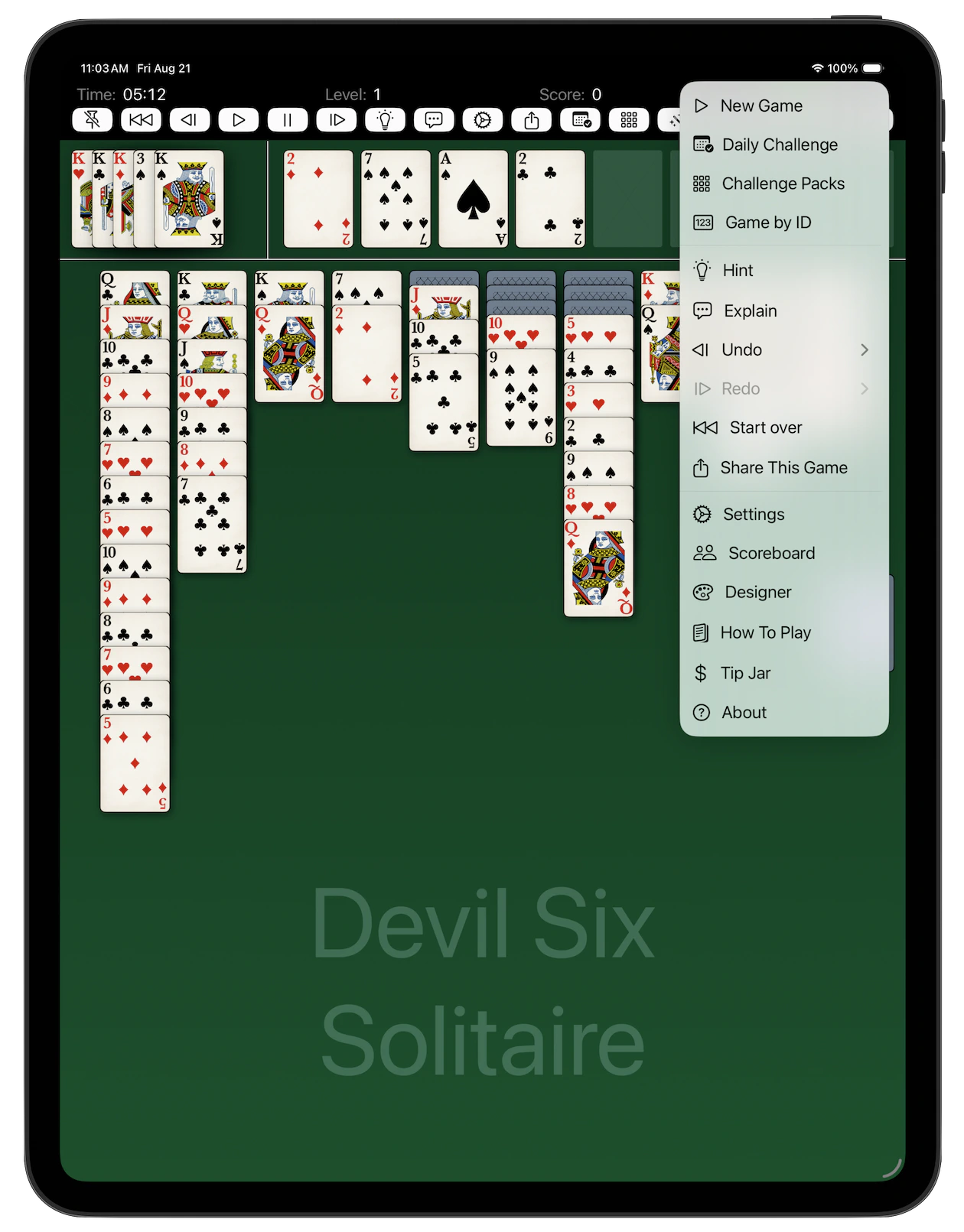
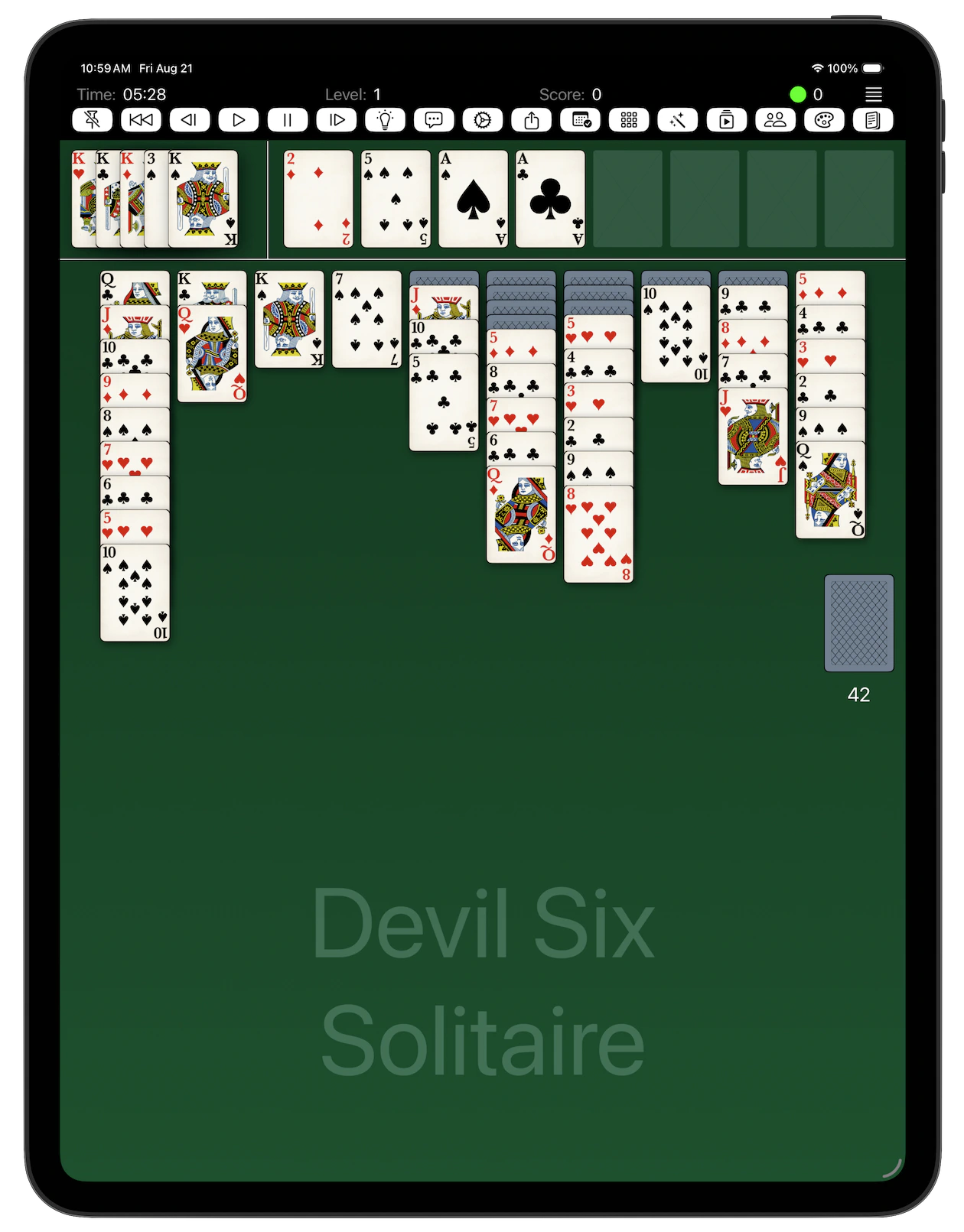
  • Tap a card in the tableau to send it to the foundation, or to another tableau column, if there is a valid move.

  • Tap the deck to deal one card to each tableau pile.

  • Drag a card, or a group of cards, wherever you want it.

  • Long press to drop a marker in the undo stack, so you can jump straight back to this position later.

Eight swipe directions are recognised - the four sides and the four corners - and you decide what each one does. Assign any command to any gesture in Settings, or set it to none.

You can use the menu to undo, redo, restart, or deal a new game. You can also use the menu to change the difficulty level, or to switch to Guide Mode or Autoplay.

The toolbar is yours too: choose which commands appear on it. The deck can sit on the left or, in landscape, along the top inline with the tableau.

Devil Six Solitaire — Guide Mode

Guide Mode

Most solitaire apps give you hints. Devil Six runs a real solver after every single move and tells you whether the position you are now in can still be won.

A coloured light next to the menu button shows where you stand:

  • Green - a solution exists from here. Keep going.

  • Red - there is no solution. Something earlier went wrong, and you will need to undo.

  • Yellow - the search ran out of time. Unknown, not hopeless.

  • Grey - still searching.

You can set the solver timeout from 10 to 90 seconds, or let it run unlimited - though an exhaustive search early in a game can take a very long time and may never finish. Any move, or any undo, cancels the current search and starts a new one. If you prefer words to colours, there is a setting for that.

Why the light costs you your score

You score a point for every card you move to a foundation, plus a bonus for the difficulty level and another for finishing quickly. A game played with Guide Mode or Autoplay scores nothing - and once either has been used, that game can never score again, however you finish it.

That is deliberate. The leaderboard is only worth looking at if every score on it was earned without a solver whispering the answer. Guide Mode is there for learning the game, and for the nights you just want to know whether that position was ever winnable. Both are worth having. Neither should count.

The app asks before enabling either one, so you cannot spend a good game by accident.

Devil Six Solitaire — Autoplay

Autoplay

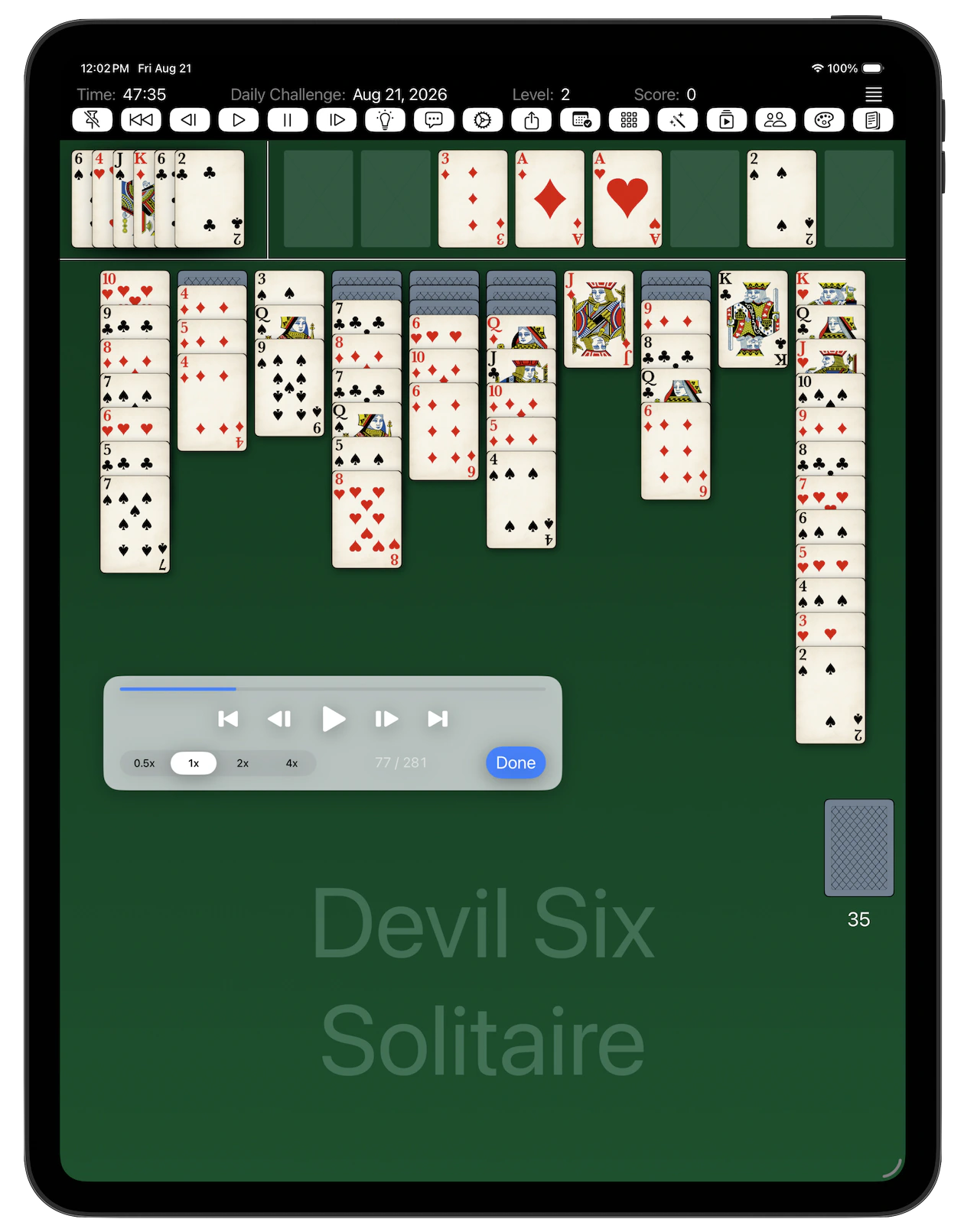
Autoplay takes it further: it searches for a winning path from where you are and, if it finds one, plays it back move by move.

You can control this playbac with a VCR-style panel: play/pause, move back and forward, to the start or end, or change the speed. You can also stop it and take over at any time.

Just like with Guide Mode, the app asks for your confirmation before solving, so you cannot spend a good game by accident.

Please note that you can’t use Autoply for today’s Daily Challenge.

Devil Six Solitaire — Daily Challenge

Daily Challenge

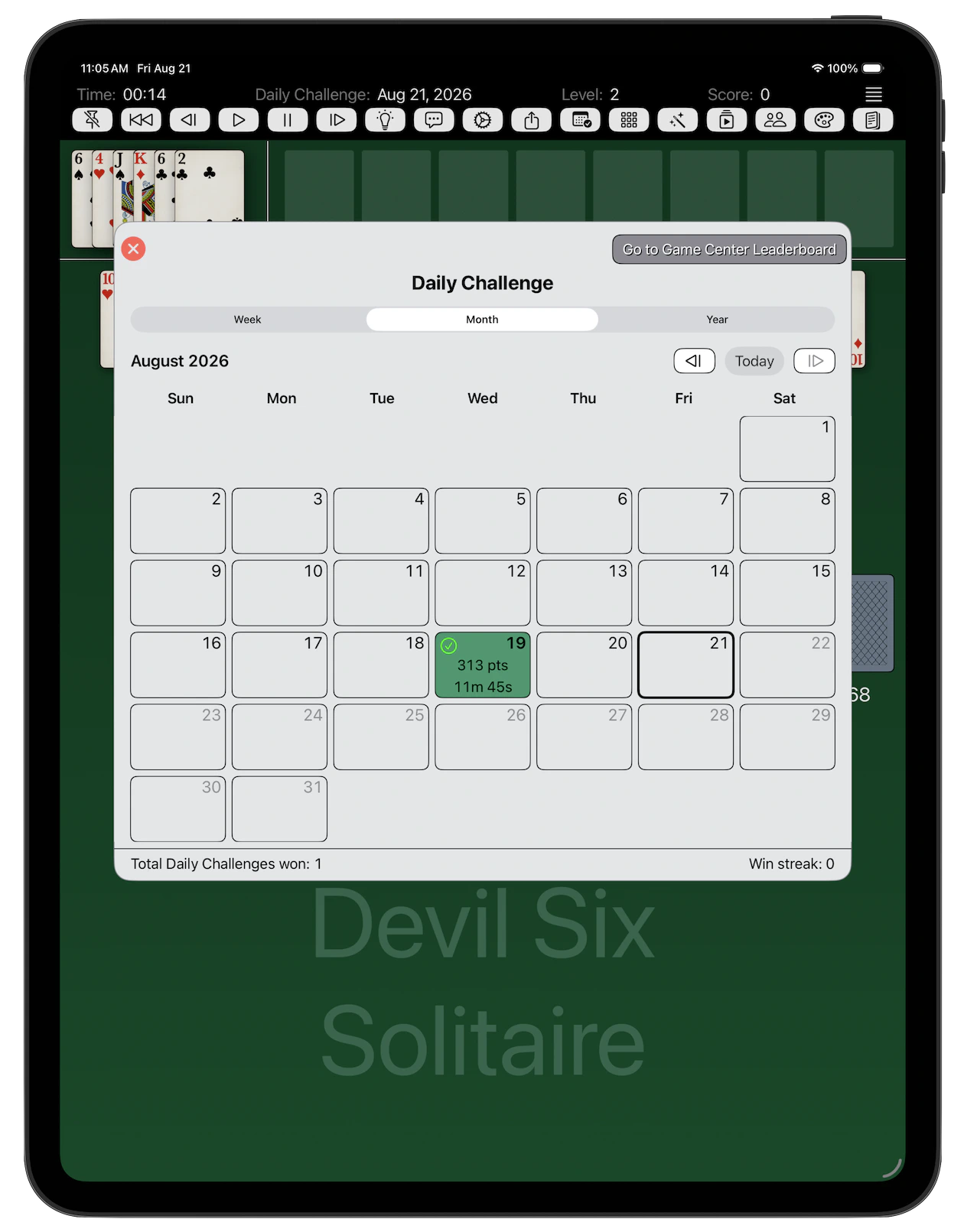
Every day, midnight to midnight, there is one Daily Challenge - a randomly chosen winnable game, the same for every player in the world.

The calendar shows the month at a glance. A green check-mark marks each day you won, with the score and the time you took. Win the challenge on its own date and it counts towards your streak, and the date turns green.

You can go back and play any day you missed, but a late win does not extend the streak. You cannot play ahead.

If you like knowing how many attempts a day took you, there is a setting to track and display that in the calendar.

Devil Six Solitaire — Challenge Packs

Challenge Packs

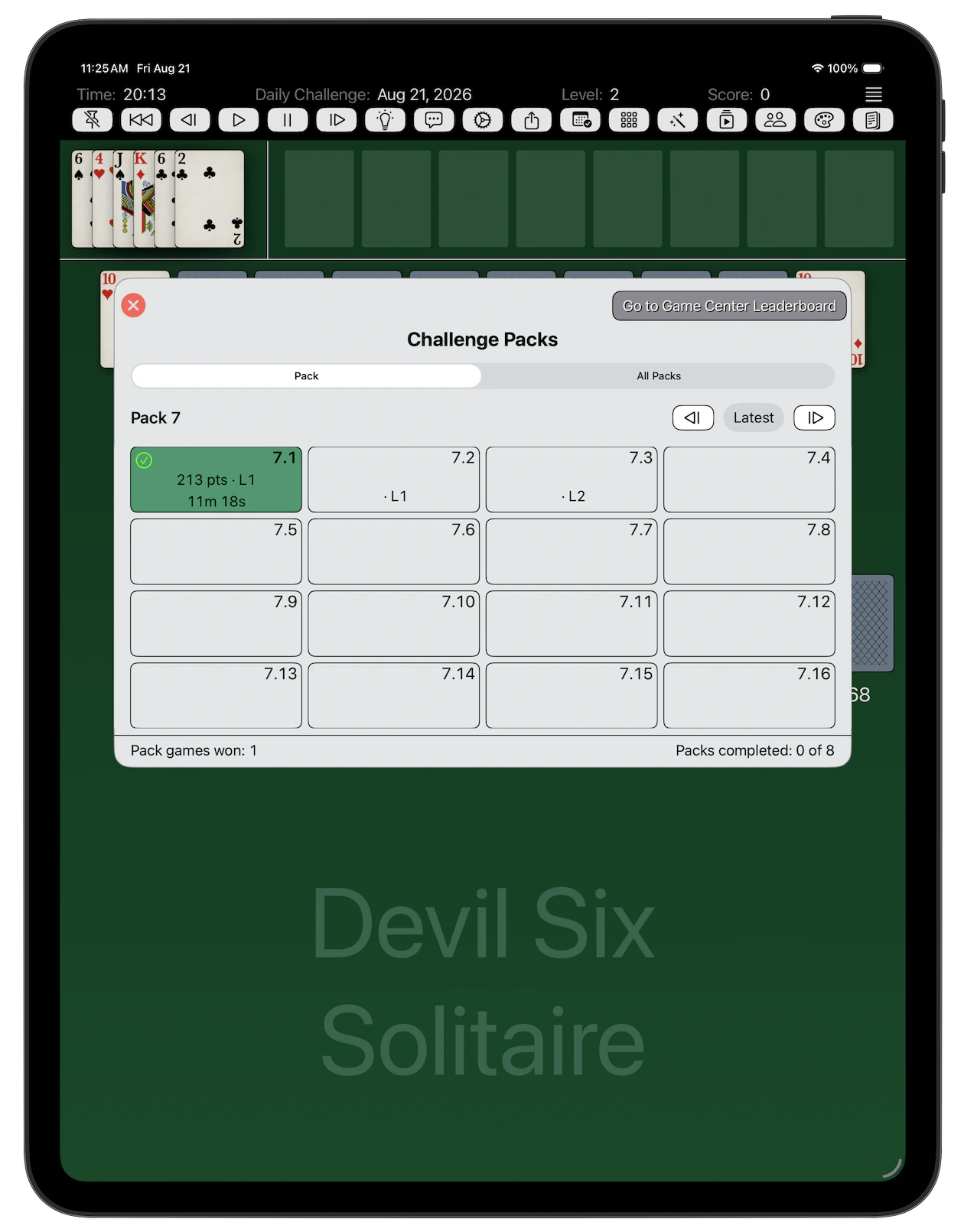
A Challenge Pack is released now and then - sixteen winnable games spanning Casual to Hard, the same set for everybody.

Every pack stays available. Play any game from any pack, current or past, from the menu or the toolbar. The grid shows a green check-mark on each game you have won, with your score and time, so you can see at a glance how much of a pack is left.

Finish a whole pack and you get a 500 point bonus.

Devil Six Solitaire — Undo, Redo and Replay

Undo, Redo and Replay

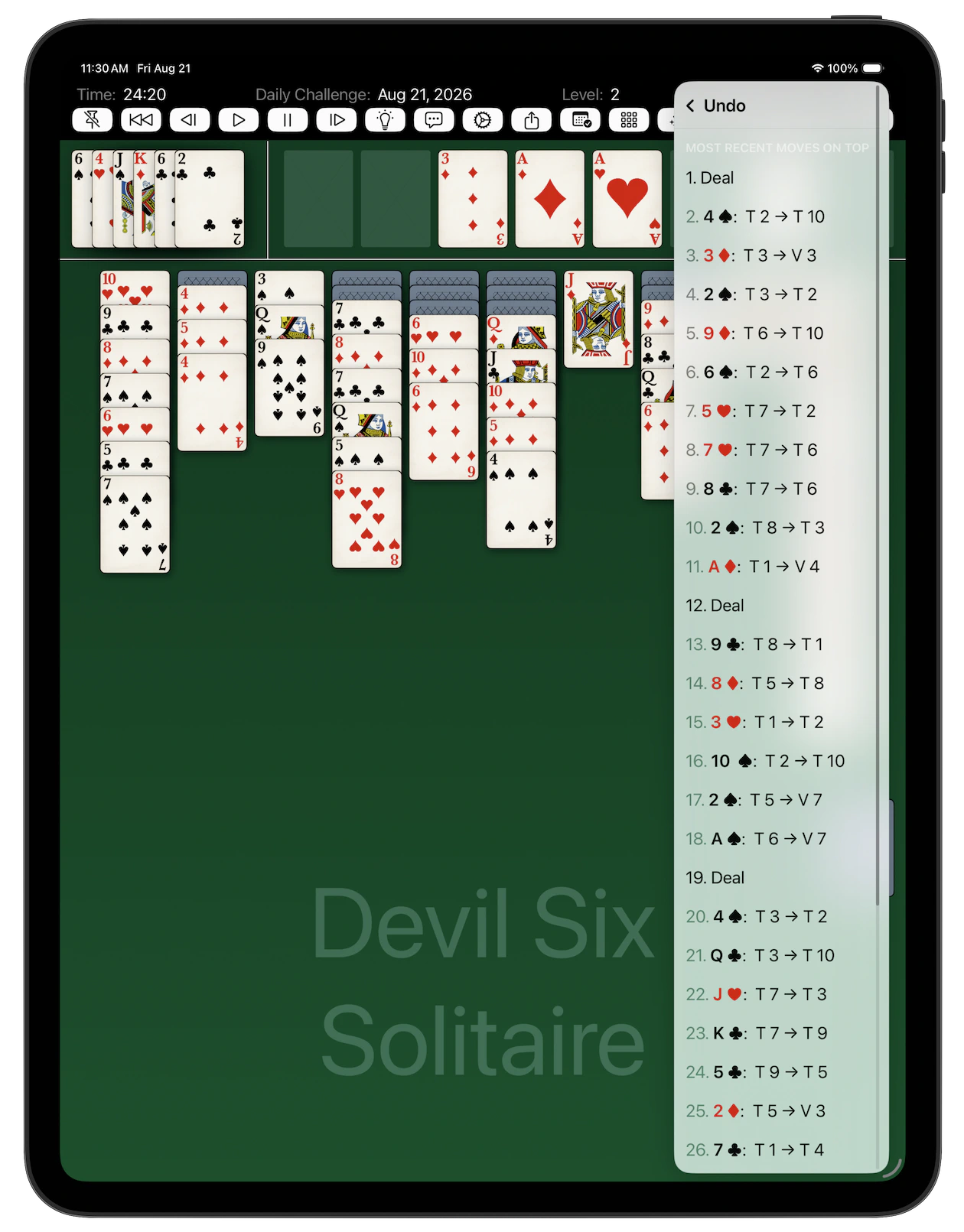
Undo opens the full list of your moves, most recent first. Take back one, a handful, or all of them. Redo does the same in the other direction for anything you have undone. Combined with a long-press marker, you can rewind to a chosen point in a long game without counting taps.

Start Over deals the same game again with a fresh timer.

Share This Game sends the current position to a friend by mail or message, or saves it to Files so you can come back to it later.

Replay a game you have just won - if you want to see how you did it. You will see the cards move automatically, and you can pause, rewind, or fast-forward the replay with the same VCR-style controls as in Autoplay.

Devil Six Solitaire — Settings

Settings

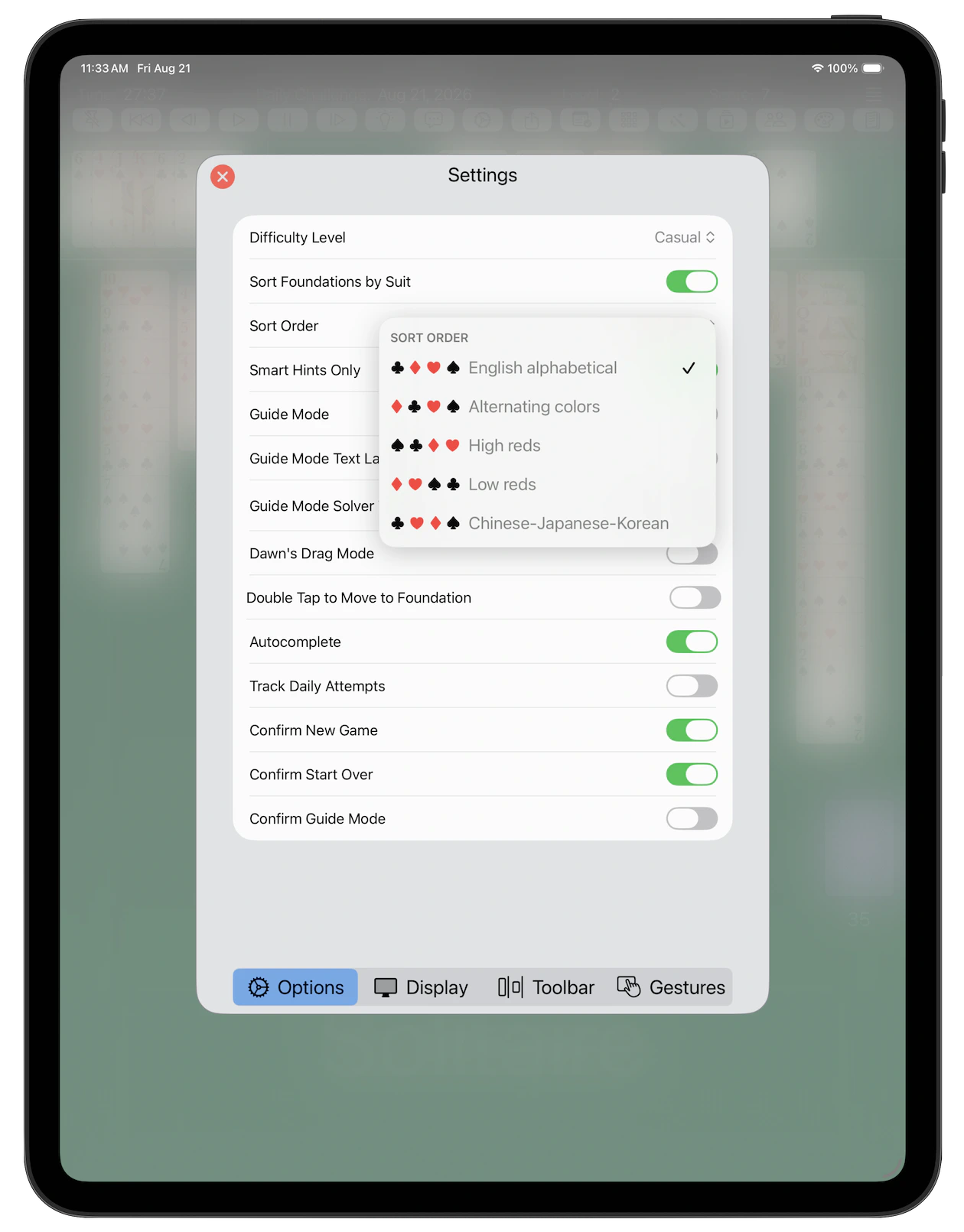
Four tabs.

Options - difficulty from 1 (Casual) up to 5 (Expert), or random; or Betsy-Anne’s Random Game, where you are told neither the level nor whether it can be won at all.

Also foundation sort order, smart hints, Guide Mode and its timeout, Dawn’s Drag Mode, double-tap to send to foundation, autocomplete, daily attempt tracking, and the confirmation prompts.

Display - spacing of face-down cards, deck on the left or on top, divider lines, the deck counter, error messages, deal and undo animation, fast animation, and the occasional Pro Tip popup.

Toolbar - pick which commands sit on the toolbar, and in what order.

Gestures - assign a command to each of the eight swipe directions, or leave any of them unused.

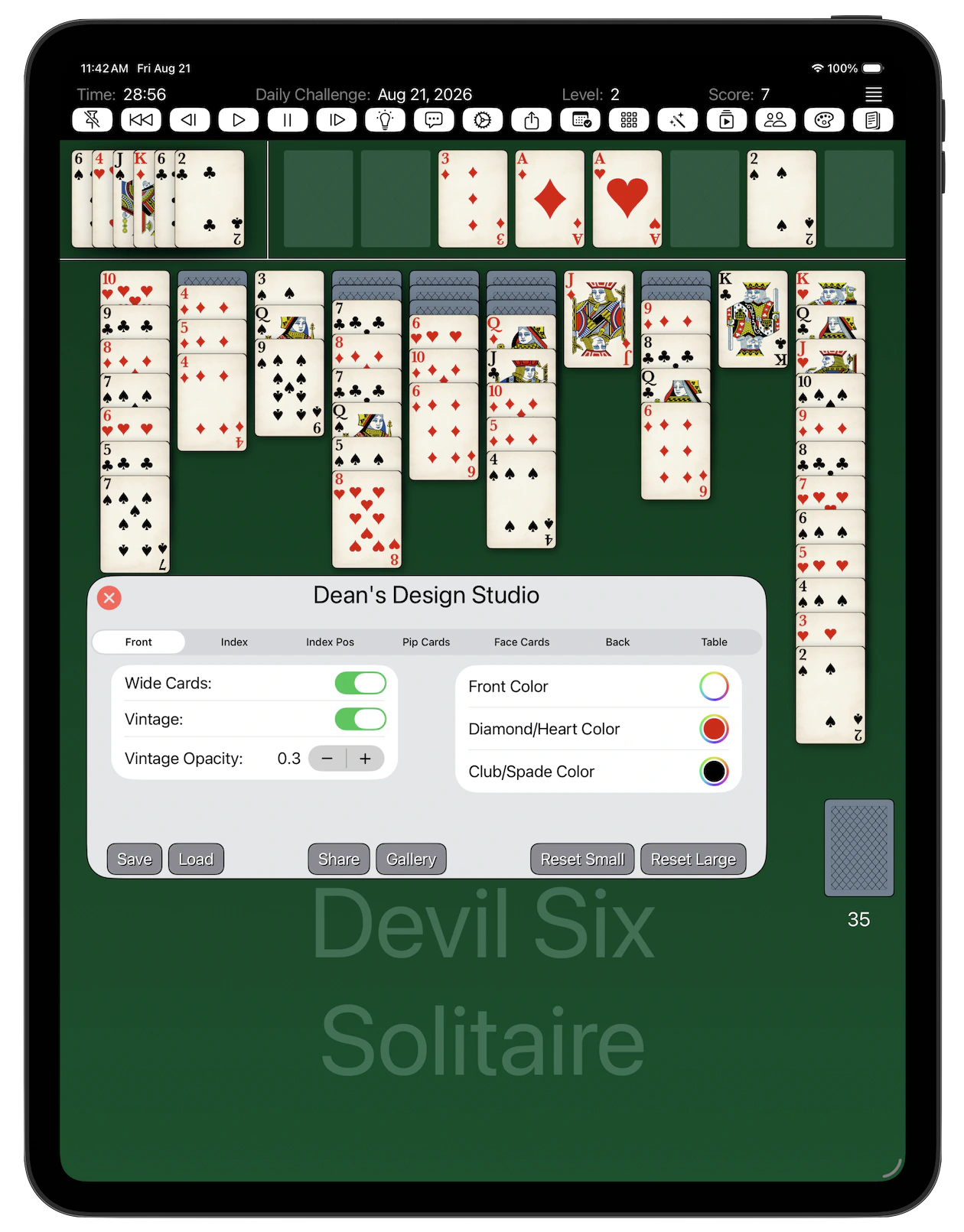
Devil Six Solitaire — Dean’s Design Studio

Dean’s Design Studio

Design your deck of cards and even a table the way you like it!

Front - choose the color set for the front of the cards.

Index - Choose how the rank and suit of cards are displayed, their font and size.

Index Pos - fine-tune the position of the rank and suit displays.

Pip Cards - for the number cards (Ace through Ten), select the pip size and margins. You can also choose to display a single pip.

Face Cards - choose the style of the face cards (Jack, Queen, King) and their margins.

Back - choose the color and pattern for the back of the cards. You can load your own image.

Table - choose the color and gradient for the table. You can load your own image.

Experiment freely, and when you are happy with your design, save it to your device or share it with friends or with entire community, via the Gallery. You can also load a design from your device or from the Gallery. If you don’t like the results, you can always reset it to the default design.